# Plugin: Word count
Source: https://developers.inkdrop.app/guides/plugin-word-count
Let's get started by writing a very simple plugin and looking at some of the tools needed to develop one effectively. We'll start by writing a plugin that tells you how many words are in the current editor and display it in a small modal window.
## Scaffolding Your Plugin
You can generate code scaffolding by running following [`ipm` command](https://github.com/inkdropapp/ipm-cli):
```shell
$ ipm init wordcount
```
You can see that `ipm` has created about a dozen files that make up the plugin. Let's take a look at each of them to get an idea of how a plugin is structured, then we can modify them to get our word count functionality.
The basic plugin layout is as follows:
```
wordcount/
├── keymaps
│ └── wordcount.json
├── menus
│ └── wordcount.json
├── src
│ ├── WordcountMessageDialog.tsx
│ ├── env.ts
│ └── index.ts
├── styles
│ └── wordcount.css
├── package.json
├── tsconfig.json
└── tsdown.config.js
```
The plugin is written in TypeScript under `src/`. Running `npm run build` compiles it with [tsdown](https://tsdown.dev/) into a `lib/` directory of plain CommonJS — that build output is what Inkdrop actually loads, and what the `main` field points to. Not every plugin will have (or need) all of these directories. Let's see what some of these are so we can start messing with them.
### package.json
Similar to [Node modules](https://docs.npmjs.com/about-npm), Inkdrop plugins contain a `package.json` file in their top-level directory. This file contains metadata about the plugin, such as the path to its "main" module, library dependencies, and manifests specifying the order in which its resources should be loaded.
In addition to some of the regular [Node `package.json` keys](https://docs.npmjs.com/files/package.json) available, Inkdrop `package.json` files have their own additions.
- `main`: the path to the JavaScript file that's the entry point to your package. With the TypeScript scaffold this points at the **compiled** output (`./lib/index`), not your `src/` source. If this is missing, Inkdrop will default to looking for an `index.js`.
- `styleSheets`: an Array of Strings identifying the order of the style sheets your plugin needs to load. If not specified, style sheets in the `styles` directory are added alphabetically.
- `keymaps`: an Array of Strings identifying the order of the key mappings your plugin needs to load. If not specified, mappings in the `keymaps` directory are added alphabetically.
- `menus`: an Array of Strings identifying the order of the menu mappings your plugin needs to load. If not specified, mappings in the `menus` directory are added alphabetically.
The `package.json` in the plugin we've just generated looks like this currently:
```json
{
"name": "wordcount",
"main": "./lib/index",
"version": "0.0.0",
"description": "A short description of your package",
"keywords": [],
"repository": "https://github.com/your-username/inkdrop-wordcount",
"license": "MIT",
"styleSheets": ["wordcount.css"],
"engines": { "inkdrop": "^6.0.0" },
"scripts": {
"dev": "tsdown --watch",
"build": "tsdown",
"prepublishOnly": "npm run build"
},
"devDependencies": {
"@inkdropapp/types": "^0.0.8",
"@types/node": "^25.9.3",
"@types/react": "^19.2.17",
"tsdown": "^0.22.2",
"typescript": "^6.0.3"
}
}
```
One of the first things you should do is ensure that this information is filled out. The name, description, repository URL the project will be at, and the license can all be filled out immediately. The other information we'll get into more detail on as we go.
> **Warning:**
>
> Do not forget to update the repository URL. The one generated for you is
> invalid by design and will prevent you from publishing your package until
> updated.
> **Note:**
>
> This plugin targets Inkdrop 6 (`"inkdrop": "^6.0.0"`). The scaffold is written
> in TypeScript, compiled to plain CommonJS in `lib/` by
> [tsdown](https://tsdown.dev/), and typed against
> [`@inkdropapp/types`](https://github.com/inkdropapp/types). If you're
> upgrading an existing plugin from Inkdrop 5, follow the [Plugin Migration
> Guide from v5 to v6](https://developers.inkdrop.app/appendix/plugin-migration-from-v5-to-v6).
### Source Code
If you want to extend Inkdrop's behavior, your plugin should contain a single top-level module, which you export from your entry file in `src/`. In the plugin we just generated, the entry is `src/index.ts`; tsdown compiles everything under `src/` into CommonJS in `lib/`, and the `main` key points at that build output (`./lib/index`). The rest of your code lives alongside the entry file in `src/` and is imported from it.
Your plugin's top-level module is a singleton object that manages the lifecycle of your extensions to Inkdrop. Even if your plugin creates ten different components and appends them to different parts of the DOM, it's all managed from your top-level object.
Your plugin's top-level module can implement the following basic methods. In Inkdrop 6, both receive the `inkdrop` [Environment](https://developers.inkdrop.app/modules/environment) as their first argument:
- `activate(env)`: This **optional** method is called when your plugin is activated. Use this to do initialization work when your plugin is started (like setting up React Components or binding events). `env` is the same instance exposed globally as `inkdrop` — a [future release will sandbox the global away](https://developers.inkdrop.app/appendix/plugin-migration-from-v5-to-v6#activate-receives-the-inkdrop-environment), so prefer the argument.
- `deactivate(env)`: This **optional** method is called when the window is shutting down. If your plugin is watching any files or holding external resources in any other way, release them here. If you're just subscribing to things on window, you don't need to worry because that's getting torn down anyway.
### Style Sheets
Style sheets for your plugin should be placed in the `styles` directory. Any style sheets in this directory will be loaded and attached to the DOM when your plugin is activated. In Inkdrop 6, write them as plain **CSS** — the app has [dropped LESS support](https://developers.inkdrop.app/appendix/plugin-migration-from-v5-to-v6#less-is-deprecated), since modern CSS supports nested selectors and variables natively.
Ideally, you won't need much in the way of styling. Inkdrop's styles are based on [Semantic UI](http://semantic-ui.com/) which provides a standard set of components which define both the colors and UI elements for any plugin that fits into Inkdrop seamlessly.
If you *do* need special styling, try to keep only structural styles in the plugin style sheets. If you must specify colors and sizing, take them from Inkdrop's predefined CSS variables and design tokens. Every `--color-*` and `--hsl-*` token is published in the [`@inkdropapp/css`](https://github.com/inkdropapp/css) repository. Use them like this:
```css
.special-button.highlighted {
background-color: var(--highlight-background);
}
```
An optional `styleSheets` array in your `package.json` can list the style sheets by name to specify a loading order; otherwise, style sheets are loaded alphabetically.
### Keymaps
You can provide key bindings for commonly used actions for your extension, especially if you're also adding a new command. In our new plugin, we have a keymap filled in for us already in the `keymaps/wordcount.json` file:
```json
{
"body": {
"ctrl-alt-o": "wordcount:toggle"
}
}
```
This means that if you press `Alt+Ctrl+O`, our package will run the `wordcount:toggle` command. We'll look at that code next, but if you want to change the default key mapping, you can do that in this file.
Keymaps are placed in the `keymaps` subdirectory. By default, all keymaps are loaded in alphabetical order. An optional `keymaps` array in your `package.json` can specify which keymaps to load and in what order.
Keybindings are executed by determining which element the keypress occurred on. In the example above, the `wordcount:toggle` command is executed when pressing `Alt+Ctrl+O` on the `body` element. This means the key combination will work anywhere in the application.
See also: [Keymap Manager](https://developers.inkdrop.app/modules/keymap-manager)
### Menus
Menus are placed in the `menus` subdirectory. This defines menu elements like what pops up when you right click a context-menu or would go in the application menu to trigger functionality in your plugin.
By default, all menus are loaded in alphabetical order. An optional `menus` array in your `package.json` can specify which menus to load and in what order.
See also: [Menu Manager](https://developers.inkdrop.app/modules/menu-manager)
### Application Menu
It's recommended that you create an application menu item under the *Plugins* menu for common actions with your plugin that aren't tied to a specific element. If we look in the `menus/wordcount.json` file that was generated for us, we'll see a section that looks like this:
```json
{
"menu": [
{
"label": "Plugins",
"submenu": [
{
"label": "Word Count",
"submenu": [
{
"label": "Toggle",
"command": "wordcount:toggle"
}
]
}
]
}
]
}
```
This section puts a "Toggle" menu item under a menu group named "Word Count" in the "Plugins" menu.
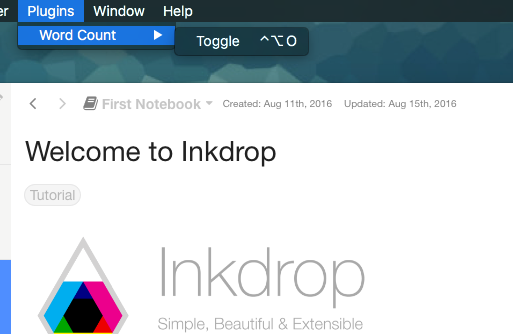
When you select that menu item, it will run the `wordcount:toggle` command, which we'll look at in a bit.
The menu templates you specify are merged with all other templates provided by other plugins in the order which they were loaded.
### Context Menu
It's recommended to specify a context menu item for commands that are linked to specific parts of the interface. In our `menus/wordcount.json` file, we can see an auto-generated section that looks like this:
```json
{
"context-menu": {
".cm-editor": [
{
"label": "Toggle Word Count",
"command": "wordcount:toggle"
}
]
}
}
```
This adds a "Toggle Word Count" menu option to the menu that pops up when you right-click in an Inkdrop text editor pane. The editor's root element is `.cm-editor` in Inkdrop 6 — it runs on [CodeMirror 6](https://codemirror.net/), so the v5 `.CodeMirror` selector no longer matches.
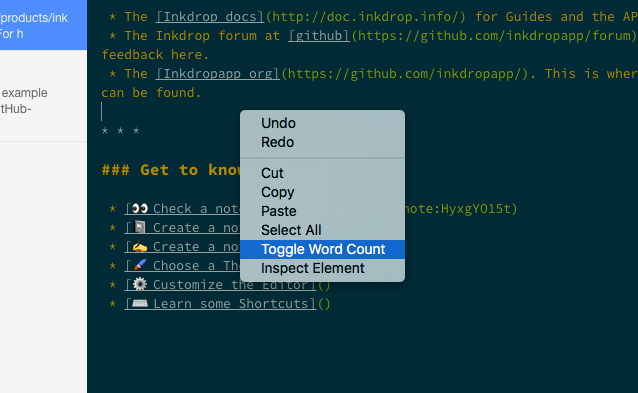
When you click that it will again run the `wordcount:toggle` method in your code.
Context menus are created by determining which element was selected and then adding all of the menu items whose selectors match that element (in the order which they were loaded). The process is then repeated for the elements until reaching the top of the DOM tree.
You can also add separators and submenus to your context menus. To add a submenu, provide a `submenu` key instead of a command. To add a separator, add an item with a single `type: 'separator'` key/value pair. For instance, you could do something like this:
```json
{
"context-menu": {
"body": [
{
"label": 'Text'
"submenu": [
{"label": 'Copy Selected Text', "command": 'core:copy'}
{"type": 'separator'}
{"label": 'Selector All', "command": 'core:select-all'}
{"type": 'separator'}
{"label": 'Undo', "command": 'core:undo'}
]
}
]
}
}
```
## Developing Your Plugin
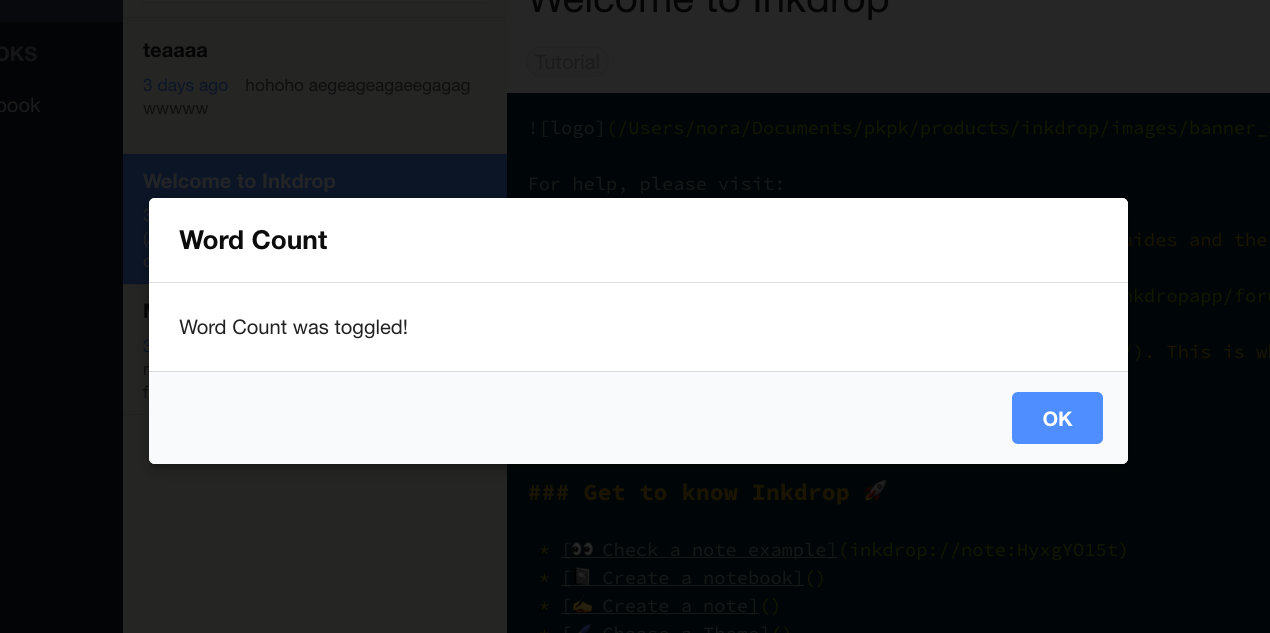
Currently with the generated package we have, if we run that `wordcount:toggle` command through the menu or the command palette, we'll get a dialog that says "Word Count was toggled!".
### Building and Linking to the App Locally
Because the plugin is written in TypeScript, you first need to build it into the `lib/` directory that `main` points to. Install the dependencies and start a watch build that rebuilds on every change:
```sh
npm install
npm run dev # or `npm run build` for a one-off production build
```
Then symlink the plugin into Inkdrop for local development. Run `ipm link --dev` to symlink your repository to `dev/packages` in [the user data directory](https://docs.inkdrop.app/manual/basic-usage#user-data-directory).
Let Inkdrop run in **Development Mode** by selecting the menu *Inkdrop > Preferences* on macOS or *File > Settings* on Windows and Linux, clicking the *General* tab on the left hand navigation, and check the "*Development Mode*", then reload the app by pressing `Alt+Cmd+Shift+R` / `Alt+Ctrl+R`.
### Understanding the Generated Code
Let's take a look at the code in our `src` directory and see what is happening. There are three files:
- `src/index.ts` — the main module, pointed to (after compilation to `lib/`) by the `main` field in `package.json`. It manages the plugin lifecycle.
- `src/WordcountMessageDialog.tsx` — a React component that renders the plugin's modal dialog.
- `src/env.ts` — a small helper that captures the `inkdrop` environment passed to `activate()` so the rest of the plugin can reach it.
#### The environment helper (`src/env.ts`)
In Inkdrop 6, `activate()` receives the `inkdrop` [Environment](https://developers.inkdrop.app/modules/environment) as its first argument, and a future release will sandbox the global `inkdrop` reference away. So instead of reaching for the global, the scaffold captures the environment once and shares it through a small module:
```ts
import type { Environment } from '@inkdropapp/types'
let captured: Environment | undefined
export function setEnv(env: Environment | undefined): void {
captured = env
}
export function getEnv(): Environment {
if (!captured) {
throw new Error('[wordcount] env accessed before activate()')
}
return captured
}
```
`activate()` calls `setEnv(env)`, and any other module can then call `getEnv()` to use the environment. See [`activate()` receives the inkdrop environment](https://developers.inkdrop.app/appendix/plugin-migration-from-v5-to-v6#activate-receives-the-inkdrop-environment) for the rationale.
#### The dialog component (`src/WordcountMessageDialog.tsx`)
Inkdrop is built with [React](https://react.dev/), and you make UI components with it. `WordcountMessageDialog` is [a function component](https://react.dev/learn/your-first-component) that renders the modal message dialog shown when the command is toggled:
```tsx
import React, { useEffect, useCallback } from 'react'
import { logger, useModal } from 'inkdrop'
import type { Dialog as DialogClass } from '@inkdropapp/types'
import { getEnv } from './env'
export const WordcountMessageDialog: React.FC = () => {
const modal = useModal()
const Dialog = getEnv().components.getComponentClass('Dialog') as DialogClass
const toggle = useCallback(() => {
modal.show()
logger.debug('Wordcount was toggled!')
}, [modal])
useEffect(() => {
const sub = getEnv().commands.add(document.body, {
'wordcount:toggle': toggle
})
return () => sub.dispose()
}, [toggle])
return (
)
}
```
It grabs the built-in `Dialog` component from [the component manager](https://developers.inkdrop.app/modules/component-manager):
```ts
const Dialog = getEnv().components.getComponentClass('Dialog') as DialogClass
```
`getComponentClass` replaces v5's `inkdrop.components.classes.Dialog`. The `as DialogClass` cast restores the `Dialog.Title` / `Dialog.Content` / `Dialog.Actions` sub-component types from [`@inkdropapp/types`](https://github.com/inkdropapp/types).
It uses the `useModal` built-in React Hook to manage the dialog's visibility state. You can show the dialog by calling `modal.show()` and hide it with `modal.close()`. To toggle the dialog from a command, it defines a callback function with React's [useCallback](https://react.dev/reference/react/useCallback):
```ts
const toggle = useCallback(() => {
modal.show()
logger.debug('Wordcount was toggled!')
}, [modal])
```
Then, it binds the callback to the `"wordcount:toggle"` command with React's [useEffect](https://react.dev/reference/react/useEffect), reaching the command registry through `getEnv()`:
```ts
useEffect(() => {
const sub = getEnv().commands.add(document.body, {
'wordcount:toggle': toggle
})
return () => sub.dispose()
}, [toggle])
```
The [`commands.add` method](https://developers.inkdrop.app/modules/command-registry#register-a-command) returns an instance of the [CompositeDisposable](https://developers.inkdrop.app/event-subscription/composite-disposable) class. Returning its `dispose` from the effect automatically unbinds the command when the component is unmounted from the DOM.
#### The main module (`src/index.ts`)
The entry point wires everything together. It's a class that implements `IInkdropPlugin`, registering the dialog on `activate()` and cleaning up on `deactivate()`:
```ts
import type { Environment, IInkdropPlugin } from '@inkdropapp/types'
import { setEnv } from './env'
import { WordcountMessageDialog } from './WordcountMessageDialog'
class InkdropPlugin implements IInkdropPlugin {
activate(env: Environment) {
setEnv(env)
env.components.registerClass(WordcountMessageDialog)
env.layouts.addComponentToLayout('modal', 'WordcountMessageDialog')
}
deactivate(env: Environment) {
env.layouts.removeComponentFromLayout('modal', 'WordcountMessageDialog')
env.components.deleteClass(WordcountMessageDialog)
setEnv(undefined)
}
}
export default new InkdropPlugin()
```
On activation it stores the environment with `setEnv(env)`, registers the `WordcountMessageDialog` class with the [component registry](https://developers.inkdrop.app/modules/component-manager), and adds it to a hidden `modals` layout. On deactivation it tears all of that down and clears the captured environment.
See also: [Component Manager](https://developers.inkdrop.app/modules/component-manager) and [Layout Manager](https://developers.inkdrop.app/modules/layout-manager)
### The Flow
So, let's review the actual flow in this plugin.
1. Inkdrop starts up
2. Inkdrop starts loading plugins
3. Inkdrop reads your `package.json`
4. Inkdrop loads keymaps, menus, styles and the main module
5. Inkdrop finishes loading plugins
6. Inkdrop executes the `activate` method in your main module which sets up the UI by creating the hidden modal message dialog
7. Inkdrop executes the plugin command `wordcount:toggle` which reveals the hidden modal message dialog
8. At some point, the user executes the `wordcount:toggle` command again
9. Inkdrop executes the command which hides the modal message dialog
## Counting the Words
So now that we understand what is happening, let's modify the code so that our little modal message dialog shows us the current word count instead of static text.
We'll do this in a very simple way. When the dialog is toggled, we'll count the words right before displaying the modal. So let's do this in the `toggle` command.
If we add some code to count the words and ask the React component to update itself, we'll have something as following in `src/WordcountMessageDialog.tsx`.
First, import `useState` method from `react`:
```js
import React, { useState, useEffect, useCallback } from 'react'
```
Next, import [react-redux](https://react-redux.js.org/). You don't have to add it as a dependency because Inkdrop provides it out of the box:
```js
import { useSelector } from 'react-redux'
```
Then, in the dialog component, add the following line to remember the word count using React's [useState](https://reactjs.org/docs/hooks-state.html):
```js
const [count, setCount] = useState(0)
```
The app state is managed with [Redux](https://react-redux.js.org/).
You can refer the state via [`env.store`](https://developers.inkdrop.app/modules/environment) or the Redux function.
In this example, we use [useSelector](https://react-redux.js.org/api/hooks) function to get the current state of [the editing note](https://developers.inkdrop.app/states/editing-note) like so:
```js
const noteBody = useSelector(selectEditingNoteBody)
```
The `selectEditingNoteBody` function should be defined outside the component function like so. Typing the state shape inline keeps the selector strict-mode clean:
```ts
const selectEditingNoteBody = (state: { editingNote?: { body: string } }) =>
state.editingNote ? state.editingNote.body : ''
```
Now, let's define a function that counts the words:
```js
const countWords = useCallback(() => {
return noteBody.split(/\s+/).length
}, [noteBody])
```
We call it when toggling the dialog:
```ts
const toggle = useCallback(() => {
setCount(countWords())
modal.show()
}, [countWords, modal])
```
Finally, we tell our message dialog to display the word count.
```js
return (
)
```
Now, `src/WordcountMessageDialog.tsx` looks like this:
```tsx
import React, { useState, useEffect, useCallback } from 'react'
import { logger, useModal } from 'inkdrop'
import { useSelector } from 'react-redux'
import type { Dialog as DialogClass } from '@inkdropapp/types'
import { getEnv } from './env'
const selectEditingNoteBody = (state: { editingNote?: { body: string } }) =>
state.editingNote ? state.editingNote.body : ''
export const WordcountMessageDialog: React.FC = () => {
const modal = useModal()
const Dialog = getEnv().components.getComponentClass('Dialog') as DialogClass
const [count, setCount] = useState(0)
const noteBody = useSelector(selectEditingNoteBody)
const countWords = useCallback(() => {
return noteBody.split(/\s+/).length
}, [noteBody])
const toggle = useCallback(() => {
setCount(countWords())
modal.show()
}, [countWords, modal])
useEffect(() => {
const sub = getEnv().commands.add(document.body, {
'wordcount:toggle': toggle
})
return () => sub.dispose()
}, [toggle])
return (
)
}
```
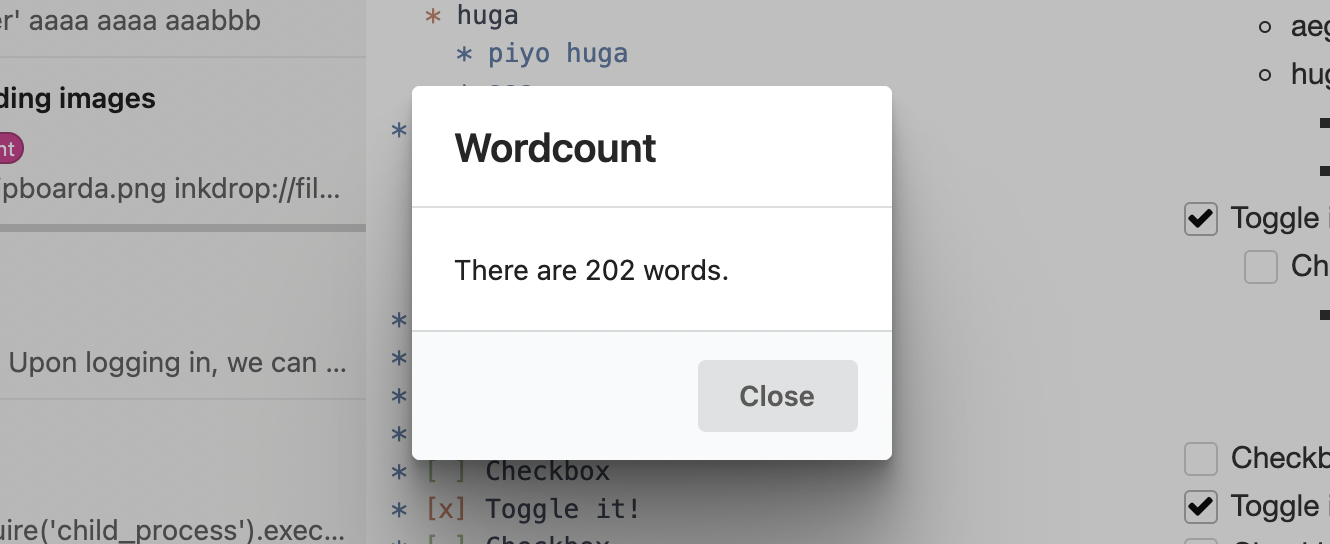
Pretty simple! We take the count number that was passed in and place it into a string that we then stick into the element that our component is controlling.
## Basic Debugging
You'll notice a `logger.debug` call in the code, which writes to the developer console. One of the cool things about Inkdrop being built on Chromium is that you can use some of the same debugging tools available to you that you have when doing web development.
To open up the Developer Console, press `Alt+Cmd+I` on macOS or `Alt+Ctrl+I` on Linux and Windows, or choose the menu option *Developer > Toggle Developer Tools*.
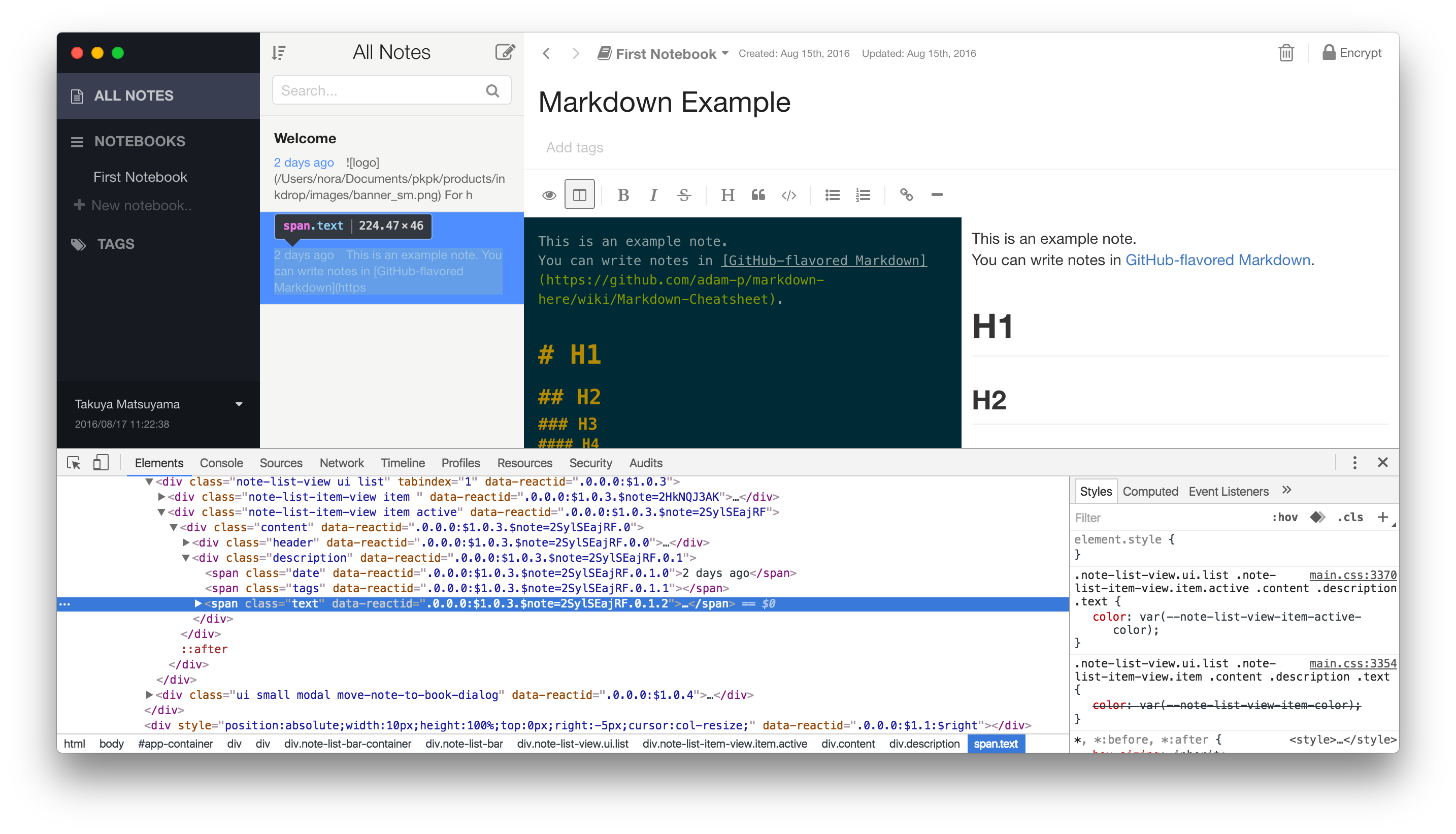
From here you can inspect objects, run code and view console output just as though you were debugging a web site.
## Publishing
Now that our simple plugin is working and tested, let's go ahead and publish it so it's available to the world.
Inkdrop plugins are published with the [`ipm` (Inkdrop Plugin Manager) CLI](https://github.com/inkdropapp/ipm-cli) — the same tool we used to scaffold and link the plugin. In Inkdrop 6 it's a standalone package; if you haven't installed and authenticated it yet, do so once:
```sh
npm install -g @inkdropapp/ipm-cli
ipm configure
```
Besides searching for and installing plugins, `ipm` publishes them to the public registry and updates them.
### Prepare Your Package
There are a few things you should double check before publishing:
- Your `package.json` file has `name`, `description`, and `repository` fields.
- Your `package.json` file has a `version` field with a value of "0.0.0".
- Your `package.json` file has an `engines` field that contains an entry for Inkdrop. For an Inkdrop 6 plugin or theme, it should be: `"engines": {"inkdrop": "^6.0.0"}`.
- Your plugin has a `README.md` file at the root.
- Change the repository url in the `package.json` file to match the URL of your repository.
- Your plugin is in a Git repository that has been pushed to [GitHub](https://github.com/). Follow [this guide](http://guides.github.com/overviews/desktop) if your plugin isn't already on GitHub.
### Publish Your Package
Before you publish a plugin it is a good idea to check ahead of time if a plugin with the same name has already been published to the [Inkdrop package registry](https://my.inkdrop.app/plugins).
You can do that by visiting to see if the plugin already exists.
If it does, update your plugin's name to something that is available before proceeding.
The recommended flow is to bump the version with [`npm version`](https://docs.npmjs.com/cli/commands/npm-version), then publish with `ipm publish`:
```bash
cd path/to/wordcount
# Bump package.json, commit, and create a matching git tag
npm version minor
# Build (via the prepublishOnly script) and publish to the registry
ipm publish
```
`npm version ` updates the `version` field in `package.json`, commits the change, and creates a `v` Git tag. `ipm publish` then runs your `prepublishOnly` script (which builds the plugin into `lib/`), registers the plugin on my.inkdrop.app the first time you publish, and publishes the new version. Push the commit and tag to GitHub so the release is available to everyone:
```bash
git push --follow-tags
```
Your package is now published and available on my.inkdrop.app. Head on over to to see your plugin's page.
`` can be `major`, `minor`, or `patch`:
- `major` increments the first number (`1.0.0`) — use it for changes that break backwards compatibility, like changing defaults or removing features.
- `minor` increments the second number (`0.1.0`) — use it when adding new functionality or making improvements on existing code.
- `patch` increments the third number (`0.0.1`) — use it when you fix a bug that was causing incorrect behaviour.
Check out [semantic versioning](https://semver.org/) to learn more about best practices for versioning your plugin releases. You can pass `--dry-run` to `ipm publish` to simulate the process without publishing, run `ipm help publish` to see all the available options, and `ipm help` to see all the other available commands.
## Summary
We've now generated, customized and published our first plugin for Inkdrop. Congratulations! Now anyone can install our masterpiece from directly within Inkdrop as we did in [Extend Inkdrop with Plugins](https://docs.inkdrop.app/manual/extend-inkdrop-with-plugins).
If you can't decide what to build, there are many ideas posted on our forum and those topics are [tagged with `plugin-idea`](https://forum.inkdrop.app/tags/plugin-idea).
You will get inspirations from them!