# Extending the UI
Source: https://developers.inkdrop.app/guides/extend-the-ui
Inkdrop's UI is built on top of [React](https://reactjs.org/).
You can add your own React components to Inkdrop by invoking [Layout Manager](https://developers.inkdrop.app/modules/layout-manager) and [Component Manager](https://developers.inkdrop.app/modules/component-manager) APIs.
## Registering and unregistering a React component
To add your React components, you first have to register them to the [component registry](https://developers.inkdrop.app/modules/component-manager).
Then, the registered components can be added to layouts.
Below example registers `MyDialog` class to the component registry and adds it to `modal` layout so that you can show it as a modal view.
```ts
import type { Environment, IInkdropPlugin } from '@inkdropapp/types'
class YourPlugin implements IInkdropPlugin {
activate(env: Environment) {
env.components.registerClass(MyDialog)
env.layouts.addComponentToLayout('modal', 'MyDialog')
}
deactivate(env: Environment) {
env.layouts.removeComponentFromLayout('modal', 'MyDialog')
env.components.deleteClass(MyDialog)
}
}
export default new YourPlugin()
```
This is described in detail in the [Word Count plugin](https://developers.inkdrop.app/guides/plugin-word-count#developing-your-plugin) walkthrough.
Available layouts can be found [here](https://developers.inkdrop.app/states/layouts).
## Examples
Take a look at the [example plugin](https://github.com/inkdropapp/layout-example-plugin) which adds bars and buttons, replacing the default note list item view with custom one, etc.
Here is a screenshot:
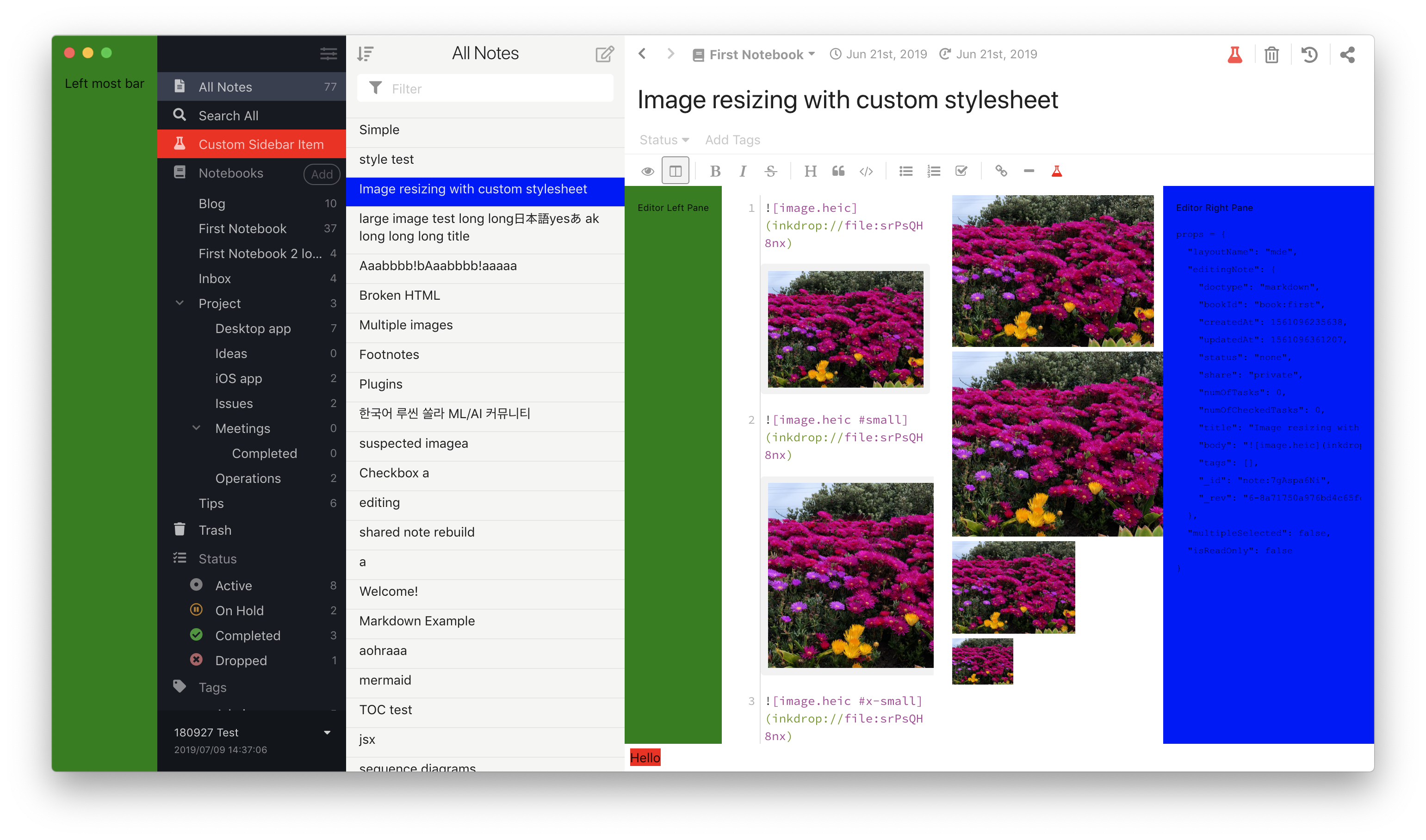
We will explore along with this example to learn how to add components to each layout.
### Showing a custom dialog
- [Example: LayoutExampleMessageDialog](https://github.com/inkdropapp/layout-example-plugin/blob/master/src/message-dialog.tsx)
Inkdrop provides the [Dialog](https://developers.inkdrop.app/components/dialog) component, with `Title`, `Content`, and
`Actions` sub-components for laying one out. Its visibility is driven by the
[useModal](https://developers.inkdrop.app/components/modal#example) hook rather than by an imperative handle, so a dialog is
an ordinary function component that shows and hides itself in response to your plugin's
command:
```tsx
import type { Dialog as DialogClass } from '@inkdropapp/types'
import { logger, useModal } from 'inkdrop'
import { useEffect } from 'react'
import { getEnv } from './env'
export function LayoutExampleMessageDialog() {
const Dialog = getEnv().components.getComponentClass('Dialog') as DialogClass
const modal = useModal()
const { show, close } = modal
const { visible } = modal.state
useEffect(() => {
const sub = getEnv().commands.add(document.body, {
'layout-example:toggle-dialog': () => {
logger.debug('dialog was toggled!')
if (visible) close()
else show()
}
})
return () => sub.dispose()
}, [visible, show, close])
return (
)
}
```
Spreading `modal.state` passes the dialog its `visible` flag, and `modal.show()` / `modal.close()`
flip it. The `as DialogClass` cast restores the sub-component types from
[`@inkdropapp/types`](https://github.com/inkdropapp/types) — a plain
`getComponentClass('Dialog')` only types the props.
The component reaches the environment through `getEnv()`, the small helper that captures the
instance passed to `activate()`. See
[`activate()` receives the inkdrop environment](https://developers.inkdrop.app/appendix/plugin-migration-from-v5-to-v6#activate-receives-the-inkdrop-environment)
for the rationale, and the [Word Count plugin](https://developers.inkdrop.app/guides/plugin-word-count#understanding-the-generated-code)
walkthrough for the helper itself.
### Inserting a view into the main layout
- [Example: LayoutExampleLeftMostBar](https://github.com/inkdropapp/layout-example-plugin/blob/master/lib/layout-example-left-most-bar.js)
It inserts a component into ['main:full'](https://developers.inkdrop.app/states/layouts#main-full) layout.
### Adding a sidebar menu item
- [Example: LayoutExampleSidebarMenuItem](https://github.com/inkdropapp/layout-example-plugin/blob/master/lib/layout-example-sidebar-menu-item.js)
### Adding a view into the editor layout
- [Example: LayoutExampleEditorLeftPane](https://github.com/inkdropapp/layout-example-plugin/blob/master/lib/layout-example-editor-left-pane.js)
- [Example: LayoutExampleEditorRightPane](https://github.com/inkdropapp/layout-example-plugin/blob/master/lib/layout-example-editor-right-pane.js)
### Adding an editor header button
- [Example: LayoutExampleEditorHeaderItem](https://github.com/inkdropapp/layout-example-plugin/blob/master/lib/layout-example-editor-header-item.js)
### Adding an editor toolbar button
- [Example: LayoutExampleEditorToolbarButton](https://github.com/inkdropapp/layout-example-plugin/blob/master/lib/layout-example-editor-toolbar-button.js)
### Adding an editor statusbar item
- [Example: LayoutExampleEditorStatusBarItem](https://github.com/inkdropapp/layout-example-plugin/blob/master/lib/layout-example-editor-status-bar-item.js)
### Replacing the note list item view
- [Example: LayoutExampleNoteListItemView](https://github.com/inkdropapp/layout-example-plugin/blob/master/lib/layout-example-note-list-item-view.js)
Inkdrop uses a custom component registered as `'CustomNoteListItemView'` in the component registry.
To register your component as custom note list item view:
```js
env.components.registerClass(
LayoutExampleNoteListItemView,
'CustomNoteListItemView'
)
```
Don't forget to unregister it when your plugin is deactivated:
```js
env.components.deleteClass(
LayoutExampleNoteListItemView.default,
'CustomNoteListItemView'
)
```